
IdoSell (API key)
Connect an IdoSell shop with an API key. You make the key in the IdoSell panel and paste it in Quomerce. Quomerce then adds everything to your shop: the script, the consent snippet, the page types and the cookie descriptions. It takes about five minutes and needs no developer.
1. Add your shop in Quomerce
Section titled “1. Add your shop in Quomerce”Sign in at app.quomerce.com and add your shop as a website. More in Add the website.
If one IdoSell panel runs several shops (for example a Polish and an English one), you have two choices:
- One website for several shops. You name each shop by the market it is (a country or a region), and Quomerce makes it a segment. You see every figure for all shops together and for each market on its own. This is the better choice when the shops are markets of one business.
- One website per shop. Add a website for each shop and connect each of them with the same steps. Their data never mixes.
2. Make an API key in IdoSell
Section titled “2. Make an API key in IdoSell”-
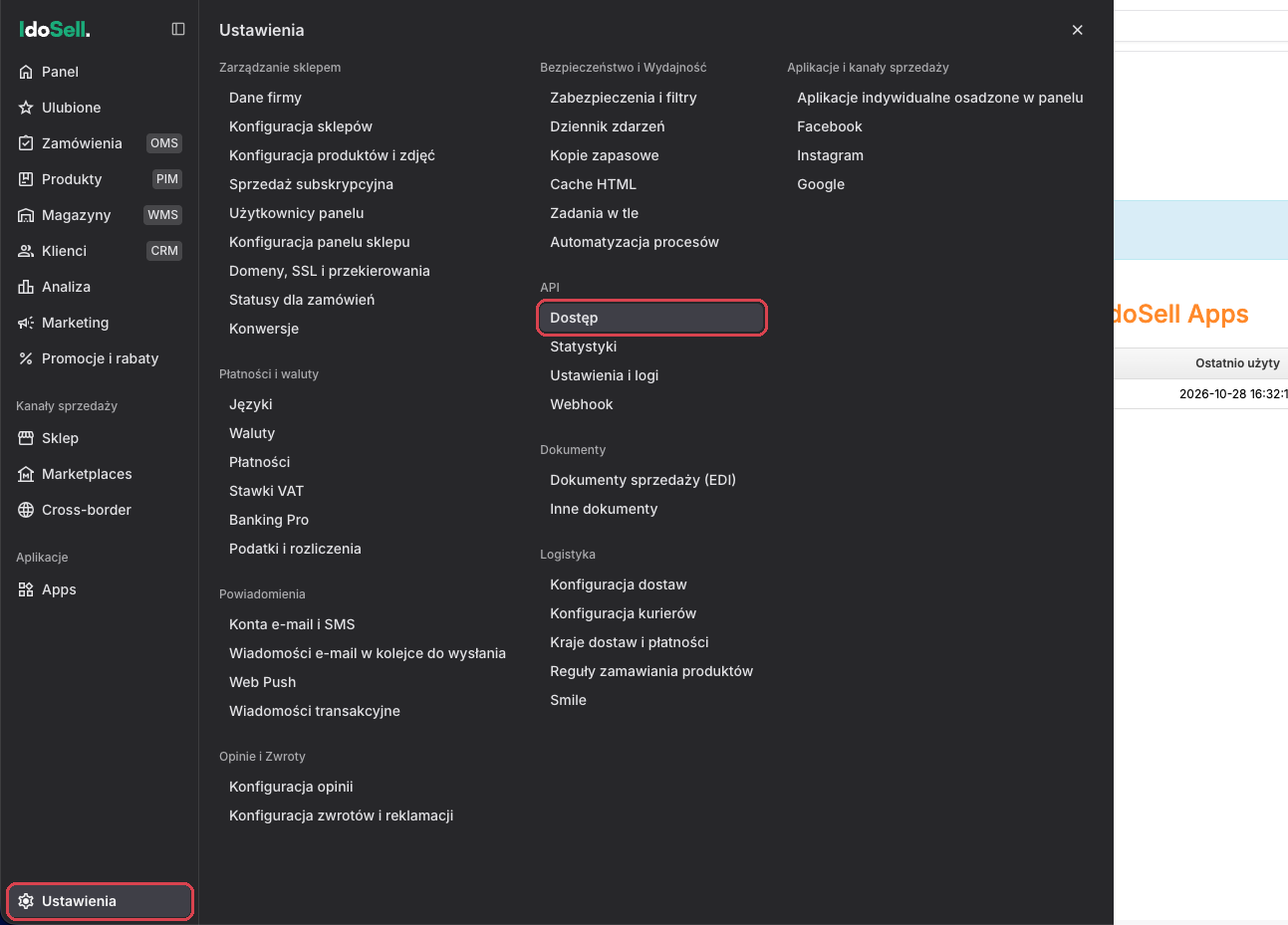
In the IdoSell panel, open Ustawienia (Settings) and, under API, click Dostęp (Access). Can’t find it? Type “API” in the panel’s search.
-
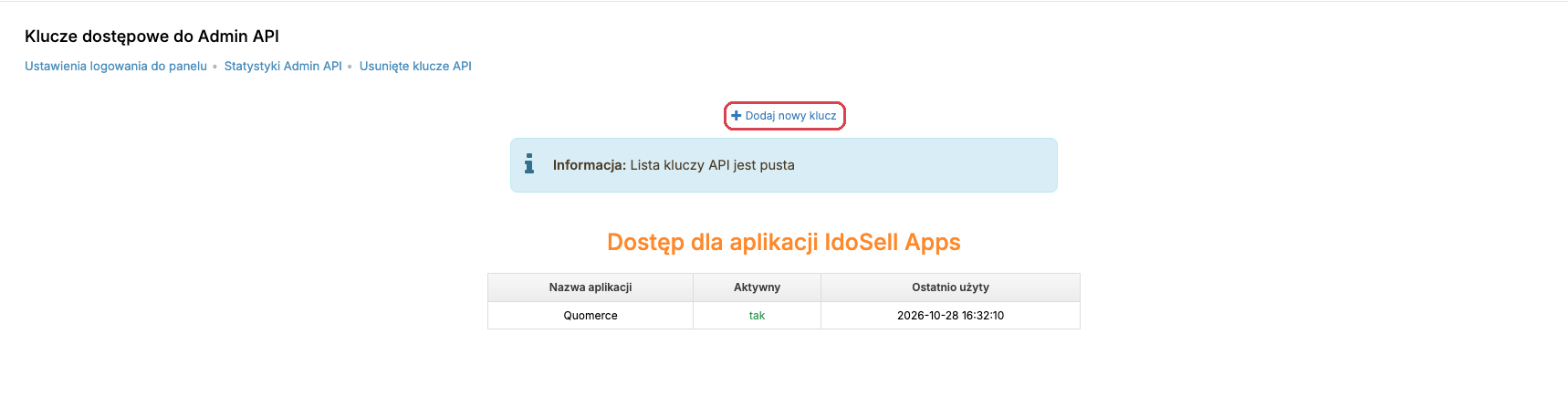
Click Dodaj nowy klucz (add a new key).
-
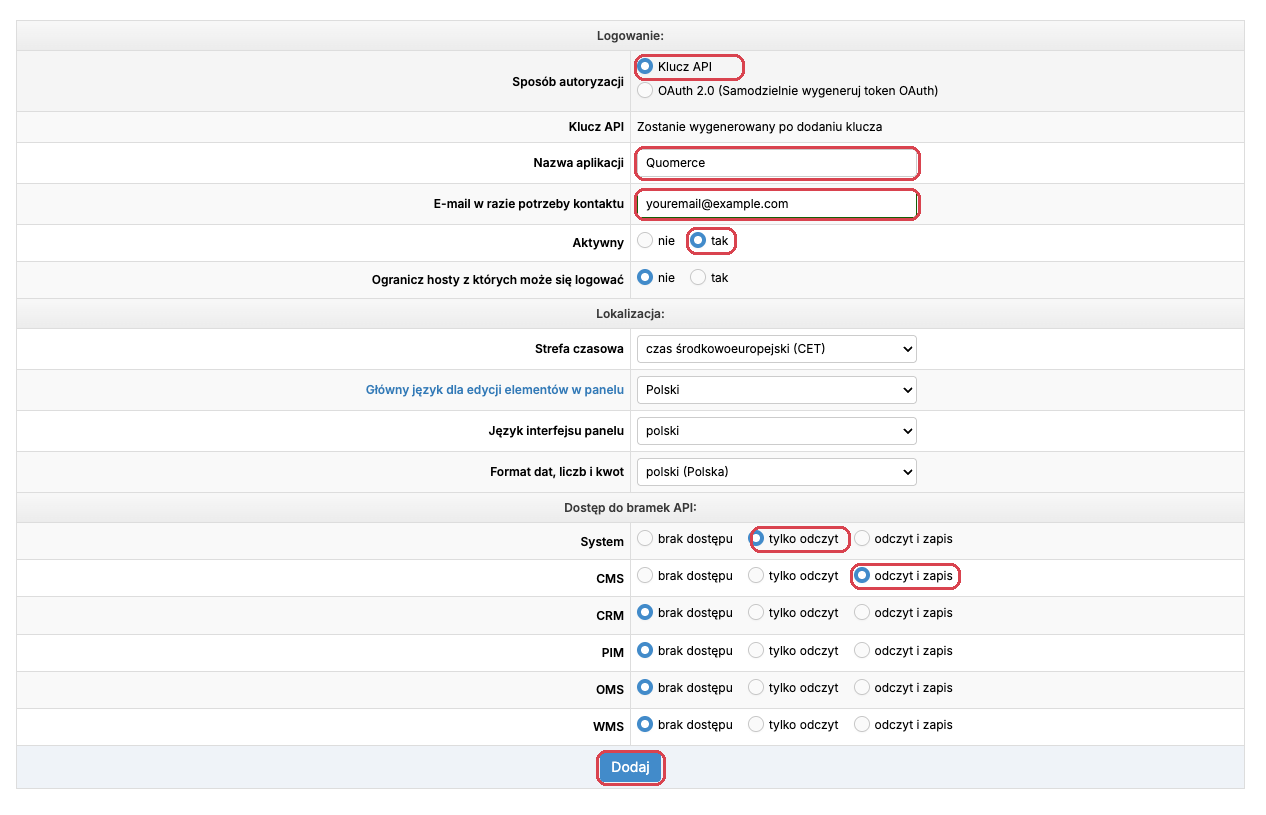
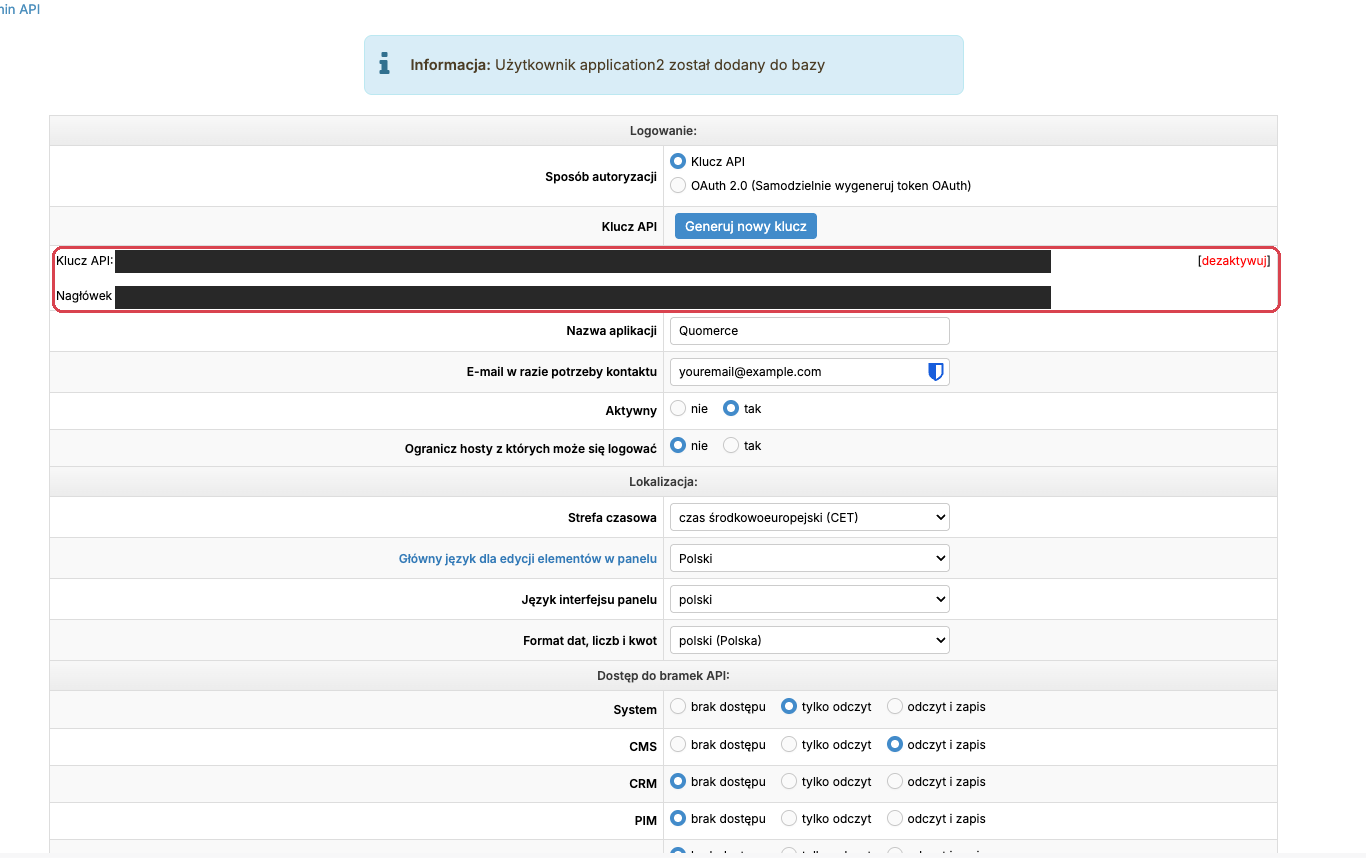
Fill in the form:
Field Set it to Sposób autoryzacji (authorization) Klucz API Nazwa aplikacji (name) QuomerceE-mail w razie potrzeby kontaktu (contact e-mail) your e-mail Aktywny (active) tak (yes) System tylko odczyt (read only) CMS odczyt i zapis (read and write) CRM, PIM, OMS, WMS brak dostępu (no access) Quomerce needs only these two rights. Give it nothing more.
-
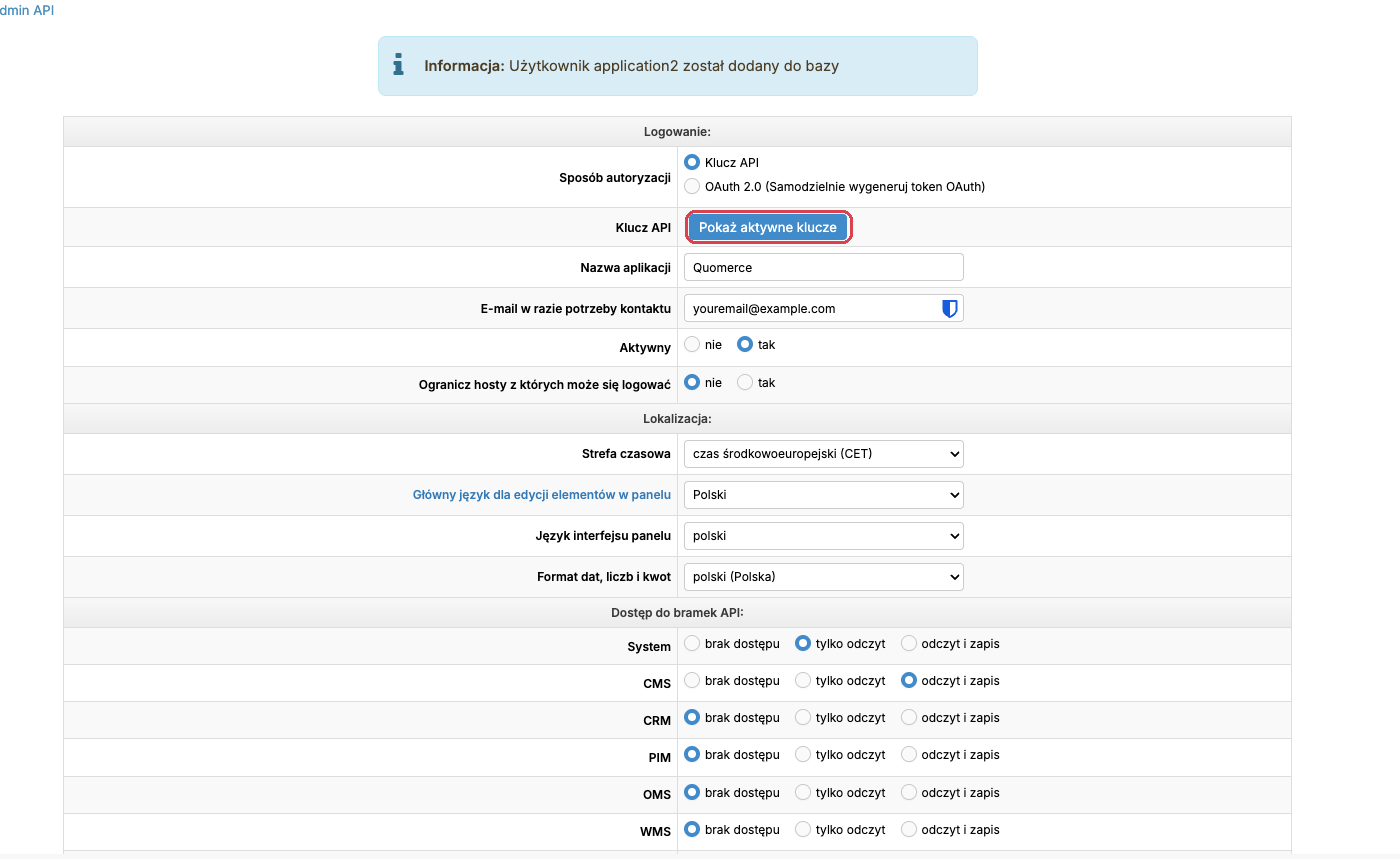
Click Dodaj (add). IdoSell says the user was added. Click Pokaż aktywne klucze (show active keys).
-
Copy the key shown next to Klucz API.
3. Paste it in Quomerce
Section titled “3. Paste it in Quomerce”-
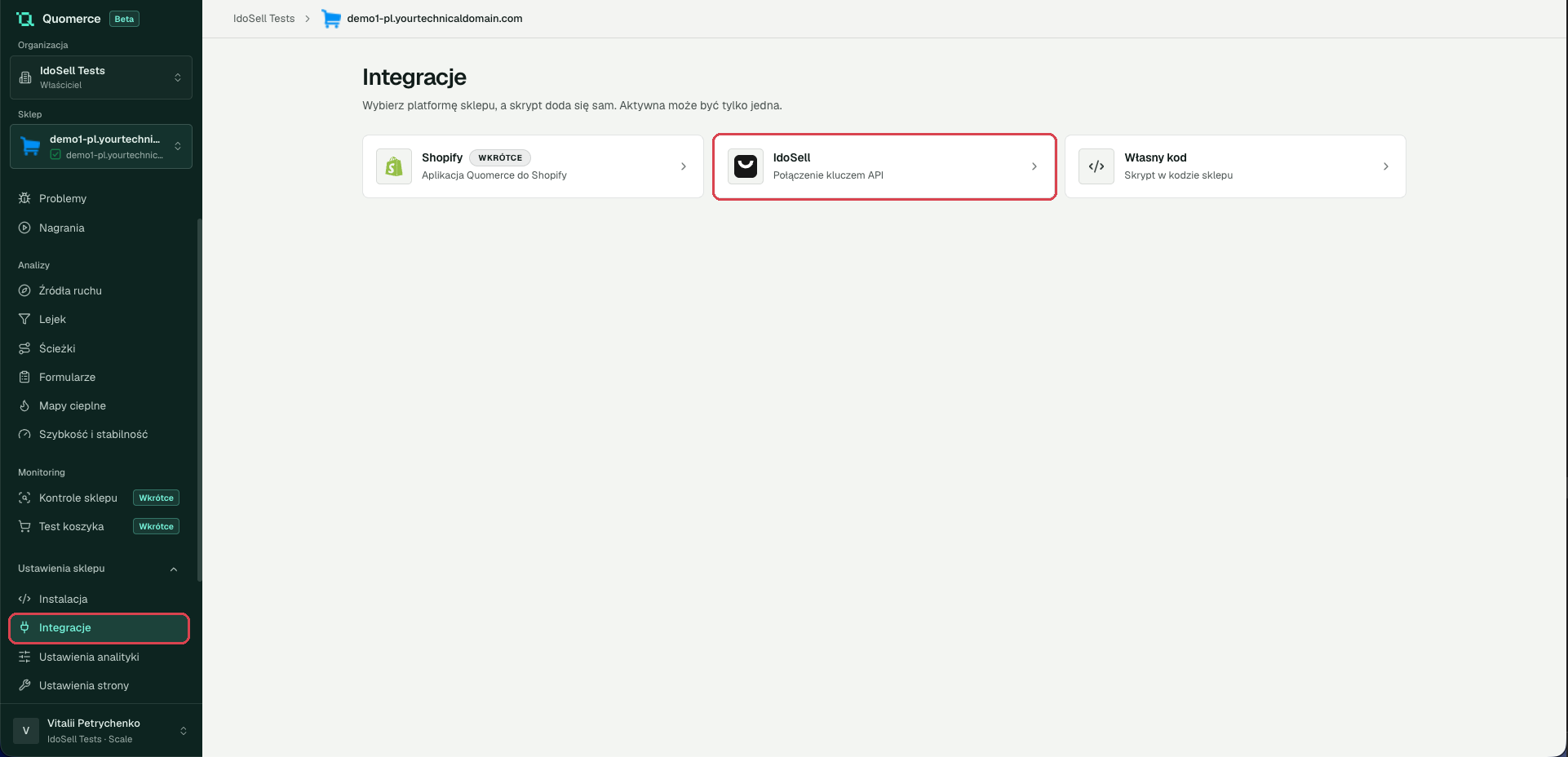
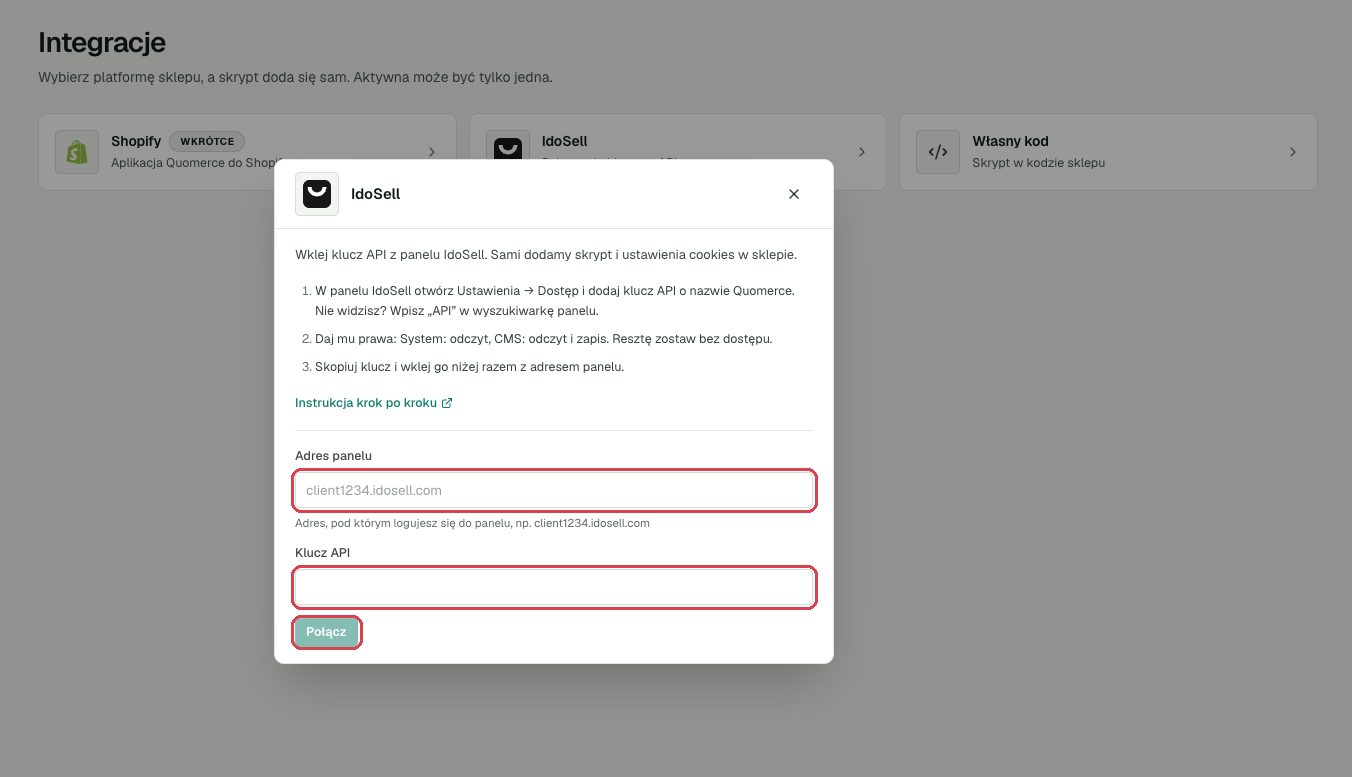
Open your website in Quomerce, go to Shop settings → Integrations and click IdoSell.
-
Type your panel address, the one you sign in to the panel with (for example
client1234.idosell.com). Paste the API key. If your panel has several shops, choose Several shops as markets of this website and name each one (for example Poland and Germany), or choose the one shop this website is. -
Click Connect.
With several shops, add each shop’s domain to Accepted from under Install & setup, or Quomerce refuses its visits. The segments appear in Install & setup → Segments with the names you gave, and you can rename them there or give them a currency.
4. Check that it works
Section titled “4. Check that it works”-
Open your shop in a private browser window, so the cookie banner shows. Accept cookies. Quomerce should be listed under analytics cookies (Analityczne).
-
Open a product, add it to the cart and go to checkout.
-
In Quomerce, open Install & setup. The Verification list fills in within a minute. More in Check that it works.
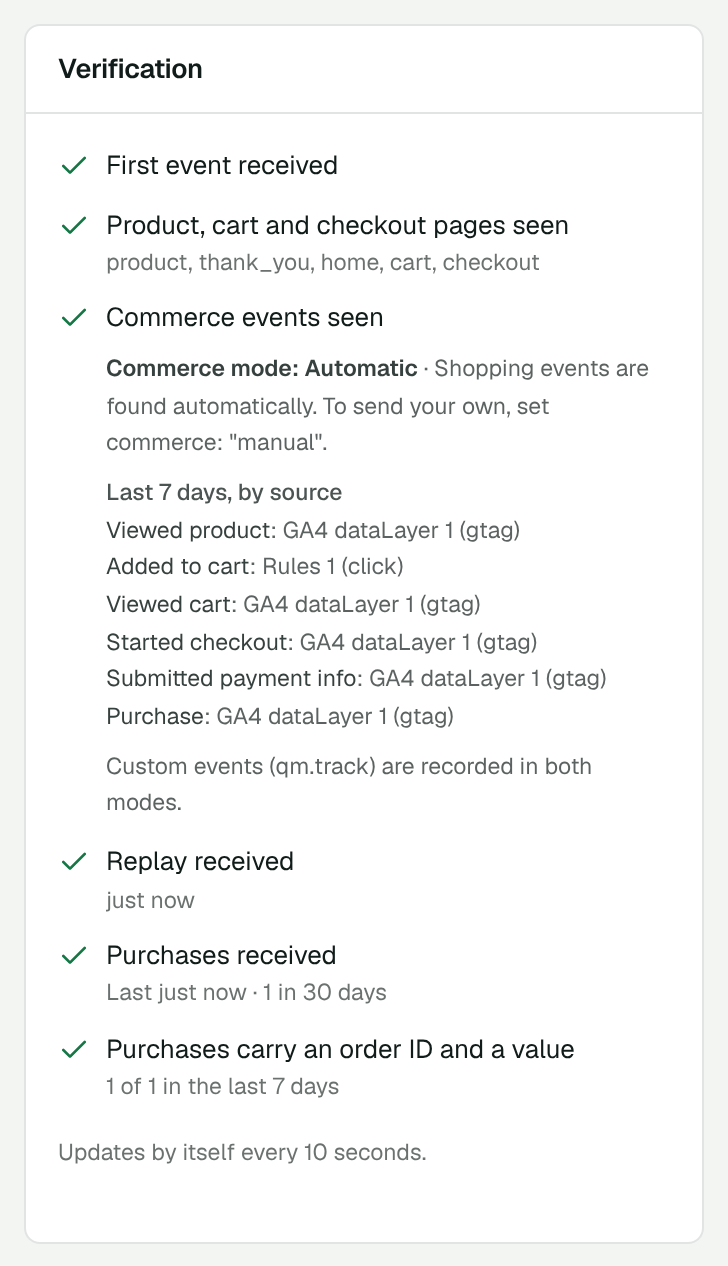
Cart, checkout and orders come from the Google Analytics 4 events IdoSell sends by itself. Turn on IdoSell’s Google Analytics 4 integration if it is off.
Disconnect
Section titled “Disconnect”Click IdoSell on the Integrations page, then Disconnect. Quomerce removes what it added. Keep the API key in IdoSell until you have done this, because Quomerce needs it to remove the script. Then you can delete the key in IdoSell.
If something doesn’t work
Section titled “If something doesn’t work”Quomerce says the key is not accepted
- Is the key active (Aktywny: tak)?
- Does it have System: read and CMS: read and write?
- Did you copy the whole key?
Quomerce says it cannot reach the panel
Check the panel address. Use the address you sign in with, without https://.
Nothing arrives in Quomerce
- Did you wait 10–15 minutes after connecting?
- Is your shop’s address in Allowed domains in the website’s analytics settings? With and without
wwware different. - Do you use an ad blocker? Try another browser.
Still stuck? Write to [email protected].